Posts

How to publish a message on login page of Citrix NetScaler

If you want displayed a message on the login page on the NetScaler, you must following this steps. Connect to NetScaler with WinSCP or FileZilla Go to the File " index.html " (Path -> " /var/vpn/vpn ") Make a backup from the file for your safety! ;-) Edit the file and change the red lines (see the example) Save the file Reload the login page and the message will be displayed Example <!-- Error message box -->      <tr>       <td align="center">            <table class="CTXMSAM_LogonFont">                <tr id="errorMessageRow">                     <td class="glowBoxLeft">&nbsp;</td>                     <td class="loginTableMidWidth">                   ...
SCCM Console - EventID 10009 REPLACEPROVIDERMACHINE

Image
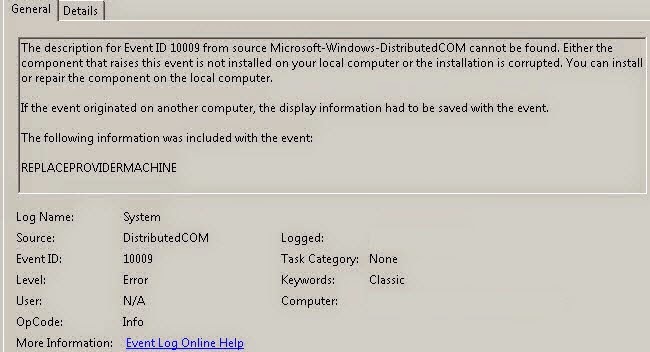
I have the following message in the event log and i can't start the Microsoft System Center Configuration Manager Console 2007. I'm fix the error with this steps: Running wbemtest.exe with admin rights Click Connect, type \\siteserver\root\sms  and then click Login Click Enum Classes, click Recursive and then click OK. In the Query Result list, double-click SMS_ProviderLocation Click Instances and then double-click the line that contains the target site code For example, SMS_ProviderLocation.SiteCode="xxx" In the Properties section, locate the NamespacePath line. You may have to double-click this line to see the whole line. Copy the NamespacePath value to the clipboard. For example, copy the following value: \\server_name\root\sms\site_xxx You can find more information at this link -> https://support2.microsoft.com/kb/317872/en-us

Unlocking Microsoft SCCM 2012 R2 Objects

When you will edit a Task Sequenz or other entries in Microsoft System Center Configuration Manager 2012 R2 and the message "Cannot edit the object, which is in use by 'username' at Site 'configmgr site'." pop up, you can fix this with the following steps. Open Microsoft SQL Server with the SCCM  instance Make a SQL Query with the following statement select * from SEDO_LockState where LockStateID <> 0 Copy the LockID from the entrie you will unlock Make a second SQL query with the following statement DELETE from SEDO_LockState where LockID = '< copied  LockID from the previous query>' After this steps you can edit the locked entries again in the SCCM console.

Cannot complete call transfer in Lync Server 2013

Image
I'm implementing a new Microsoft Lync 2013 deployment in my company. I had a standard Lync call forwarding problem at the same SIP trunk deployment was used in the old Lync 2010 deployment. The problem was that I could not forward any calls to my mobile phone or other phones. The Lync client show the message "Cannot complete the transfer." Only from Lync Client to Lync Client works perfectly. I looked at the old environment and found the solution to the problem. I had the same problem already and the last time I had solved it (but unfortunately not documented ... but now it's documented :-) ). The fix was very simple. You must make the following changes in your environment. Open the Lync 2013 Powershell (with admin rights) Get-CsTrunkConfiguration If the setting of EnableReferSupport already has the value FALSE, then you have another problem that can not solved with my instructions! Backup the config Set-CsTrunkConfiguration -EnableReferSupport $F...

How to change the SCUP database to a shared database (multiple users)

Microsoft System Center Updates Publisher (SCUP) 2011 does not store his database file centrally for all users. SCUP creates a separate file for each user in his profile ("C:\Users\<UserName>\AppData\Local\Microsoft\System Center Updates Publisher 2011\5.00.1727.0000\"). Funny, because a central database file is in the most cases very useful. With the following steps you can change this (mistake): Close the SCUP console Open the Scup2011.exe.config in editor (run the editor as admin) Add the following lines to the config file <applicationSettings>        <Scup.Properties.Settings>            <setting name="SSCEDataFile" serializeAs="String">                <value>C:\SCUP_2011\5.00.1727.0000\scupdb.sdf</value>            </setting>        </Scup.Properties.Settings> </applicationSetting...

Lync 2013 - Cannot find any suitable disk for database files

Image
When you install a Microsoft Lync 2013 Server and you become the following message in Step 2 "Setup or Remove Lync Server Components"... Error: An error occurred: "Microsoft.Rtc.Management.Deployment.DeploymentException" "Cannot find any suitable disks for database files. You must manually specify database paths." ... is the solution very simple. Expand your system drive space or clean it. The cause of this error was lack of free disk space on the C:\ drive. You still need 16 GB of free disk space on the system drive.

How to give a user rights for NetScaler Reporting tab

Image
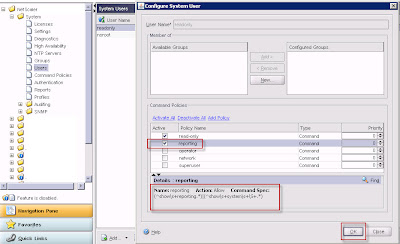
When you create a NetScaler user with read only rights, that user can't see the Reporting tab. You have the error message: Error retrieving the data source. Return code = 2138. Error message = Not authorized to execute this command. You can create this rights for the user with the following points. Open NetScaler webinterface Log in with nsroot or a user with root rights Go to Configuration tab Open folder System Go to Command Policies Generate a new one with the Add -Button Give a name (Example: Reporting) Type the following text in the Command Spec ->  (^show\s+reporting.*)|(^show\s+system\s+\S+.*) Click Create Go to Users Open the user do you want give the reporting access Actived the reporting policy Click OK